
Episode 8: Email Channel Setup
TL;DR
- You need to set up authenticated domains by adding your subdomains and configuring DNS records before you can send emails from Marketing Cloud Next.
- Download the DNS record details from Marketing Cloud Next and send them to your IT team for configuration.
- Either set up your domain as the very last step of migration, or use a different subdomain than your current marketing automation platform to avoid sending disruptions.
- Updating your physical address on the platform doesn’t affect operations, opportunities, or anything else, so don’t panic.
- Marketing performance setup is straightforward and mostly involves clicking “install” and “enable” buttons, but it’s required for reporting to work properly.
Welcome back for episode 8 of our Marketing Cloud Next (MCN) guide. In this one, we’re going to walk through email channel setup, domain deliverability, and marketing performance configuration.
These are the last things you need to complete before you can really start using your Marketing Cloud Next instance. We know it’s been eight episodes of configuring stuff, but starting with the next one, you’re using stuff. And that is very exciting!
Let’s get into it.
Getting to the Setup Area
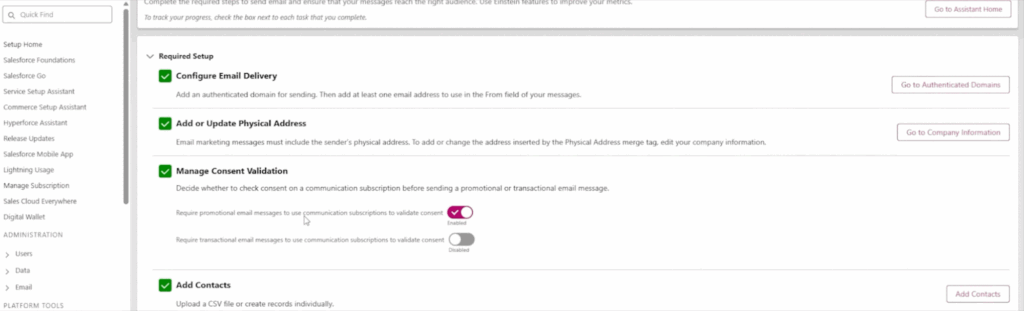
To get to the setup area, navigate to Setup > Platform Tools > Marketing Cloud > Assistant Home. This is where you can see all the steps you need to complete to have your Marketing Cloud properly set up. You’ll see the required setup sections for Email and Marketing Performance, which are the two things we’re covering today.

Email Delivery Setup
Consent (Quick Note)
The email setup area includes a few sections about consent, which we already covered in detail in the last episode because it’s a more complex area than what’s presented here. The only extra thing here is the option to manage consent validation, where you decide to check on consent for promotional and transactional emails. In our case, we have consent validation enabled for promotional emails but not transactional. That’s really the only additional consent piece in this section.
Authenticated Domains
To set up email delivery, you first have to create your authenticated domains. Click the button to navigate to the domain management page, then click Add Domain to add your subdomain.
Adding the domain here won’t immediately allow you to send emails. It simply creates the DNS records that you need to register in order to use that email domain. If you have different domains that you use for sending different communications, you would add all of them here.
Once you create them, they’ll show up in the table. Click Show Details to expand an area with records, including the purpose, outbound record type, CNAME values, DKIM details, and more.
To be fully honest, you don’t need to know exactly what all of them are. You just need to know that you have to configure these DNS records in order to send emails. Every marketing automation platform requires you to set this up because otherwise, mail providers will start blocking your emails.
Here’s what you do:
- Download the DNS record details by clicking the download button. The download provides the structure, and you pull in the specific values from the details view.
- Send the file to your IT team with a note saying “I need you to set up these DNS records for this specific domain.” It will have all the details they need.
- Once they publish the DNS records, you typically need to wait a few hours for DNS to propagate through the internet.
- After propagation, click Verify Domain and it will run a verification check. If everything is set up correctly, you’ll see a success status and the domain will show as active.
The process itself is very straightforward. You just have to provide this data to the IT person responsible for your domain management.
In our case, the DNS setup was actually very fast. But we ran into a different problem, which brings us to an important lesson.
A Critical Lesson on Domain Timing
We strongly recommend that you either set up a different subdomain than the one you’re currently using in your existing marketing automation platform, or do the DNS setup as the absolute last thing in your migration.
Here’s why:
Before MCN, we were using a different marketing automation platform with our main domain. One day, we decided to set up the DNS records for Marketing Cloud Next before we had finished consent configuration, subscription management, and a lot of other steps still needed to send emails. When we set up the DNS, we replaced the old DKIM record from our previous platform with the new MCN one. That meant we couldn’t send emails from our old platform anymore because deliverability was now pointing to MCN…and we needed to send an email in a week.
We had to rush through and finalize everything in about a week, which was not ideal. Learn from our mistakes so you don’t repeat them!
From Address and Reply Mail Management
After your DNS records are set up, navigate to the From Addresses section to configure your from email address. This is very straightforward. Just click Add and create it.
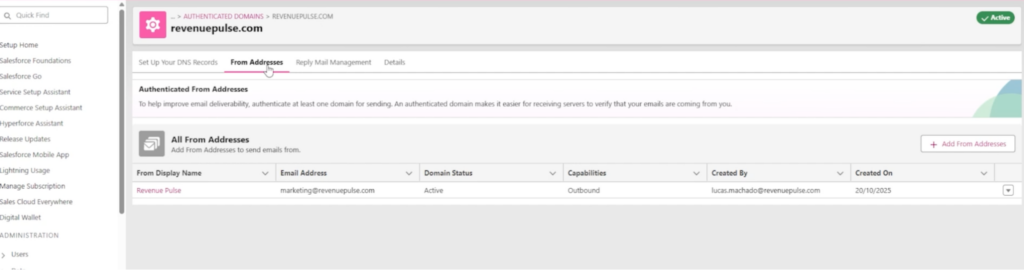
You also have the option to set up Reply Mail Management. We’re not using this right now, but you can use it to delete auto-replies and out-of-office responses, forward every message to a specific inbox, and so on. It’s there if you need it.
Physical Address
After deliverability is configured, you also need to add or update your physical address, because every email is required to have a valid physical address.
Clicking through takes you to the Company Information section, where you can see and edit the address area.
This part actually took us longer than the deliverability setup itself, but not for the reason you’d think. We completed it earlier in the process, so we had time, but it was genuinely scary to change the physical address in both the marketing platform and the CRM. We didn’t know how it would propagate.
Our sender’s physical address was listed as US, but our real headquarters are in Canada. So we had to switch from US to Canada. Would that impact opportunities? Would it disrupt operations? We didn’t know.
After a week of research and conversations with our CSM to figure it out, we learned the answer: it doesn’t do anything. If you need to change your country, it’s totally fine. It won’t impact your opportunities or disrupt operations. We were over-panicking for no reason.
You can see a pattern here where the places we should have worried about, we didn’t. And the ones we shouldn’t have worried about, we did. But hey, it’s totally normal to have some panic when taking on a massive migration like this. We hope this guide can reduce that as much as possible for you, though.
Contacts and Data
We didn’t talk about adding contacts specifically, because all of our contact imports into Marketing Cloud Next were done from Salesforce CRM itself. We didn’t have to create records manually or upload a CSV file. The contacts were added automatically via Data Cloud, which we walked through in the earlier episodes covering the data cloud process for connecting your CRM to Marketing Cloud Next.
Optional Email Setups
There are two optional setups you can enable in this section:
- Metrics Guard: Simply click the checkbox to enable it.
- Send Time Optimization: Click enable to turn it on. We’re not using it internally right now, but it’s available if you prefer.
With all of that done, you are ready to start sending your marketing emails. Deliverability is set up, and you’re good to go.
Marketing Performance Setup
The last thing to cover is the Marketing Performance section. You have to set this up to see your dashboarding, details, and reports inside Marketing Cloud Next.
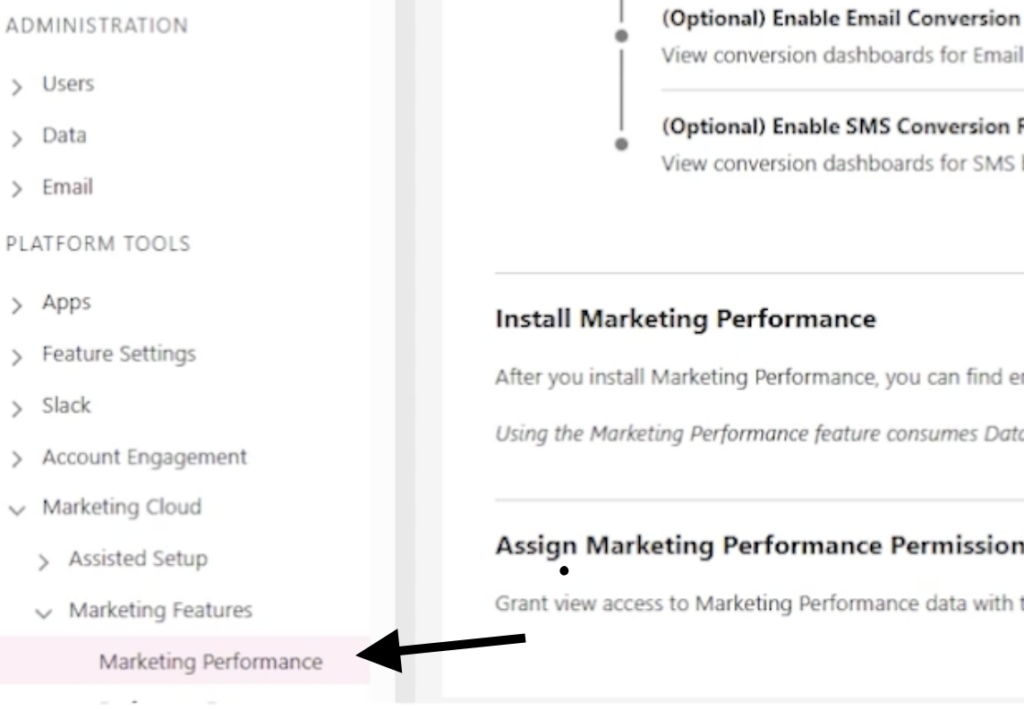
The good news is that you’ll have done most of these steps while setting up other areas or even while setting up Marketing Cloud itself. This section is completely separate from the email and domain deliverability work. It’s really about getting the data flows set up properly so you can see opens, unsubscribes, clicks, and all of that. It ties the data together for reporting purposes.
Steps to Complete
Marketing Data: If you navigate to the marketing data section, it will take you to the basic settings of Marketing Cloud. You’ve likely already done this. The marketing data kits should already be installed. We also covered web tracking setup back in episode 6. If you go to the personalization or flow performance sections, you’ll see similar steps that are essentially just clicking a bunch of “enable” buttons. What this does is create the data flows needed to analyze your data in reports inside Marketing Cloud Next.
Install Marketing Performance: After the data kits are in place, install Marketing Performance. Again, just click Install.
Assign Permissions: For people to see your reports, they’ll need the Tableau Next Included App Business User permission set. Assign this to the users you want to have reporting access.
How Long Does This Take?
This whole process takes about half an hour. You click some buttons and you’re done. Once you click install, it installs, and you’ll see a “setup success” confirmation. You also get visual cues showing that the installed marketing data kits are deployed and active. If something is already installed, you won’t be able to install it again, which is another confirmation that it went through.
Key Takeaways
While this episode was a bit longer, it was one of the most straightforward parts of the migration process.
The main learning here is to know when to panic when setting up deliverability and your domain. Know the risks you’re taking, and know where you’re not taking any risks. We panicked for no reason for a week, and you don’t need to do the same!
If you have any questions about the setup, feel free to reach out here. We’d be happy to help.