
Episode 6: Web Tracking Part 1
TL;DR
- The Setup Assistant home area in Marketing Cloud contains everything you need to configure sites and forms.
- The “Sites and Forms” section has eight tasks, starting with the consent banner, landing page tracking, external tracking, and using forms on external sites.
- Salesforce requires you to ask for consent on landing pages so your leads can have their behavior tracked.
- The consent banner configured in setup only applies to your Marketing Cloud landing pages, not your external website.
- In Experience Builder, you need to add three integrations: Data Cloud web tracking, the consent banner, and Google reCAPTCHA.
In episode 6 of our MCN migration guide, we’ll walk you through how to connect your Marketing Cloud to your sites and forms and start using them in landing pages.
We’ll cover how to set up the consent banner, configure landing page tracking through Experience Builder, and integrate with Data Cloud to start capturing activity.
Let’s begin!
Starting in the Setup Assistant
As with previous episodes in this series, we always start in the Setup Assistant home area. This area contains everything you need to set up to start working in your Marketing Cloud.
From here, click on Sites and Forms. Once open, you’ll see eight tasks. The first is to customize the consent banner, followed by configuring landing page tracking, configuring external tracking, and using forms on external sites.
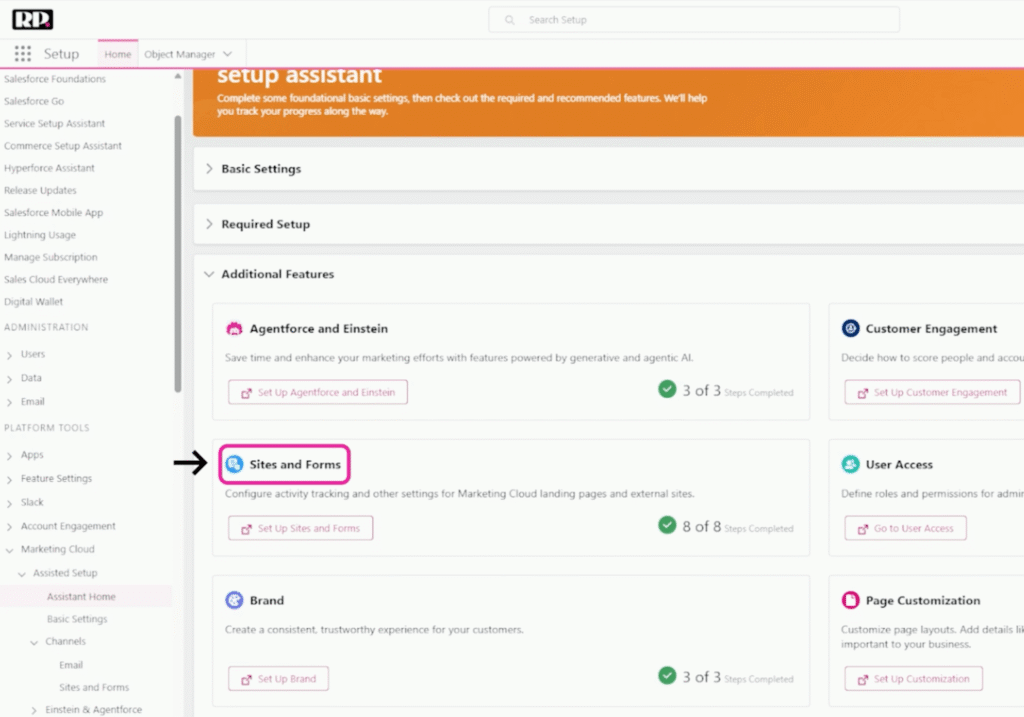
We’re going to focus on the consent banner and landing page tracking in this episode.
Configuring the Consent Banner
Salesforce requires you to ask for consent on your landing pages so your leads can have their behavior tracked. To set this up, click into the consent banner task, where you can configure the banner the way you prefer. Here, you can set the position of the banner, the color, the text, and all the other visual details.
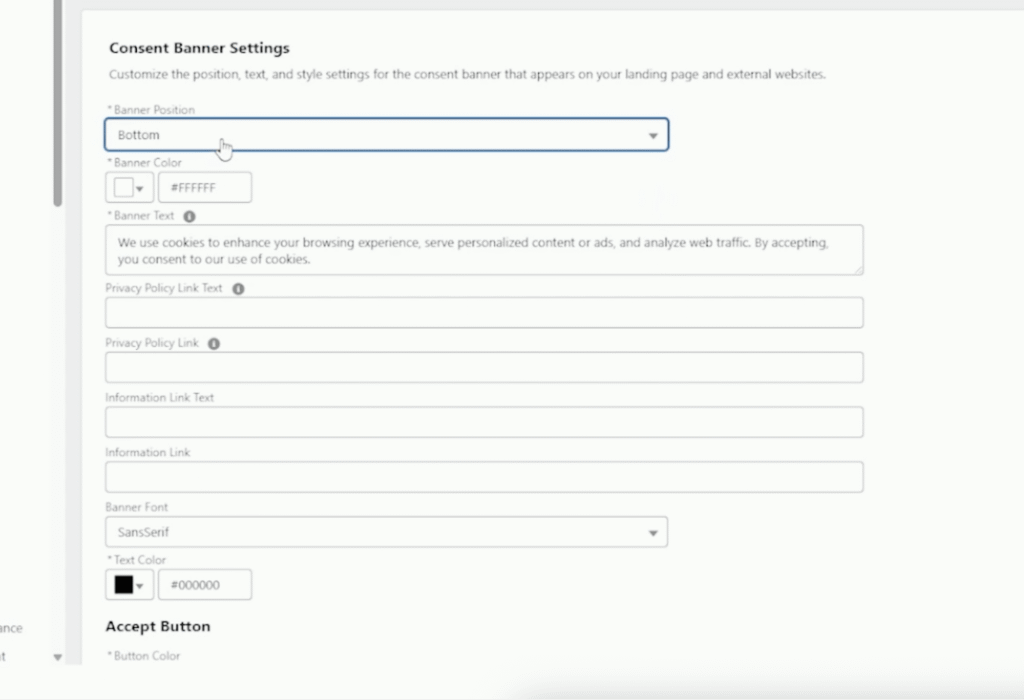
There’s an important distinction to understand here. Just configuring the consent banner in setup will not make your landing pages automatically have the banner. It won’t make your external website have the banner either, because for your external website, the process is very different (we’ll be covering this in Episode 7).
This consent banner configuration only works for your Marketing Cloud landing pages. And to actually enable it, you need to complete the integration steps in Experience Builder, which we’ll cover next.
Setting Up Integrations in Experience Builder
Now that you’ve customized the consent banner, the next step is to go to your site.To find your site, navigate to Digital Experiences. From there, click Builder on your website, which will open the Experience Builder where you have your templates.
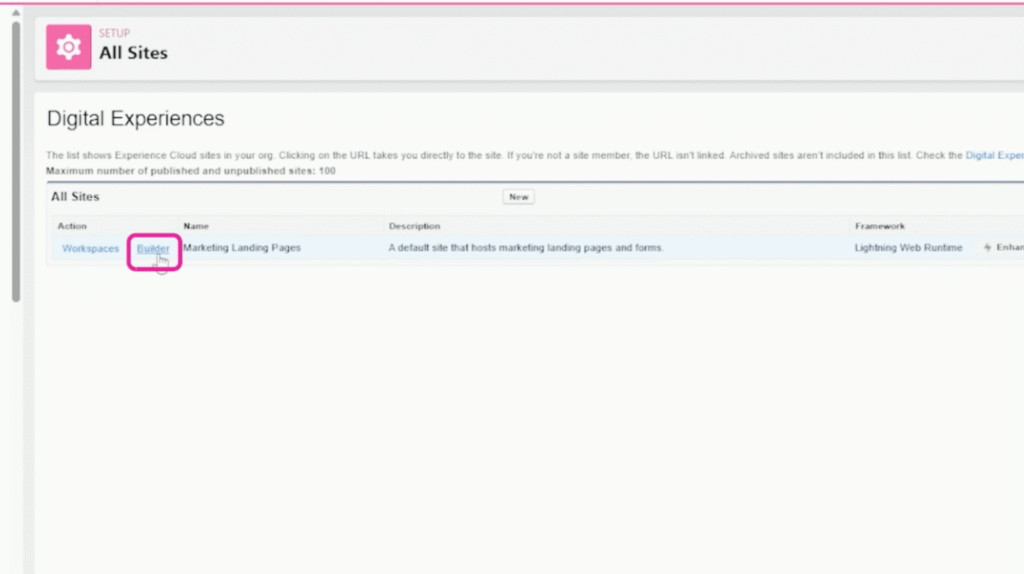
From here, you want to click on the gadget icon and set up the integrations for your landing pages. There are three you need to add:
Data Cloud — This is what sets up the integration to capture data and send it to Marketing Cloud. Adding it is as easy as clicking “Add to Site,” just like you would with Google Analytics 4.
Data Cloud Web Tracking Consent Banner — This is what actually activates the consent banner on your landing pages. Without this integration, the banner you configured in setup won’t appear.
Google reCAPTCHA — This is more for forms, but still highly recommended. If you click on “Learn More” for the reCAPTCHA integration, it explains how to set it up. You’ll need to set it up on your Google account first, then add the ID to the integration before turning it on.
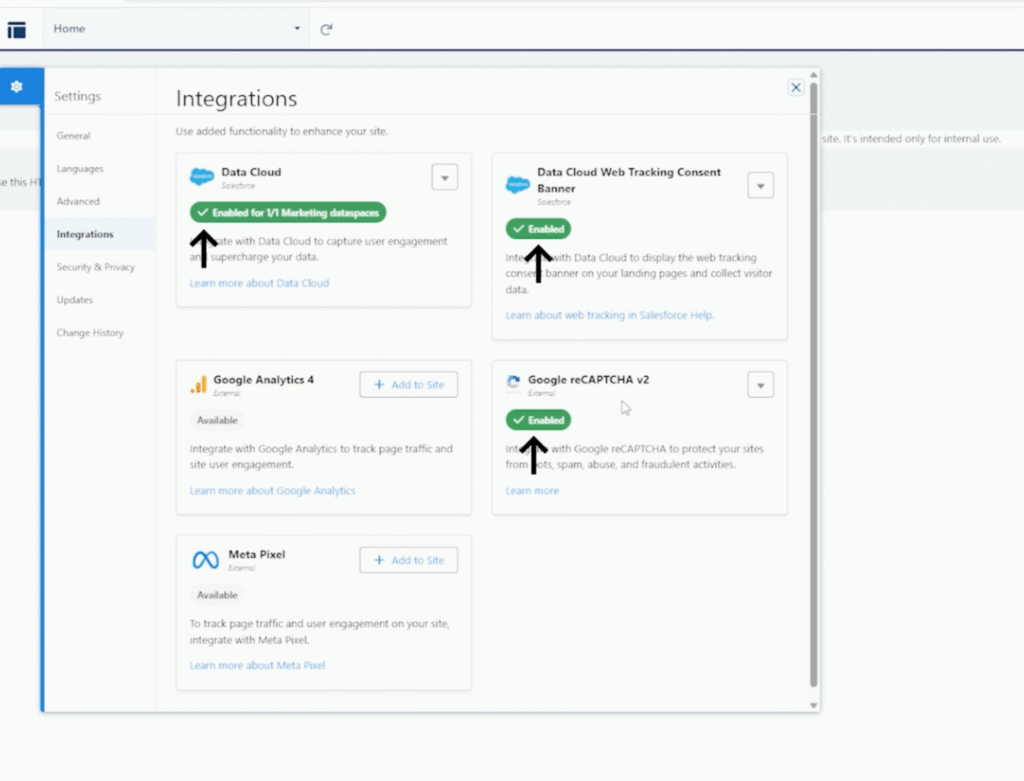
Once these integrations are in place, your landing page activity will be captured in Data Cloud and, therefore, in your Marketing Cloud!
What’s Next: Part 2
We decided it made sense to split web tracking into two separate parts: one for internal pages (which we’ve covered here) and one for external pages (which we cover in the next episode). So jump on over to Episode 7 for the complete walkthrough on connecting your external landing pages and website!
As always, if you have any questions or need help with your MCN migration, feel free to reach out here.