
Episode 7: Web Tracking Part 2
TL;DR
- You need to create a website connector in Marketing Cloud to track activity on your website.
- The connector generates a web tracking script that you add to the head of your website.
- Once installed, behavioral events from your website start flowing into Data Cloud.
- You must add your domains as trusted domains and configure CORS to allow forms on external pages.
Welcome to part two of our website tracking series! In this episode, we’re focusing on external landing pages and your website itself. We’ll cover how to create a website connector, get behavioral event data flowing into Data Cloud, and allow your forms to show up on external pages.
Creating a Website Connector
To track activity on your website, you have to create a website connector. This is what links your external site to your Marketing Cloud instance and allows behavioral data to flow in.
Navigate to your web page embedded code section and click “New.” It will ask you to create a name for the connector. For example, you might name it something like “RP Website.” You only need one connector per website.
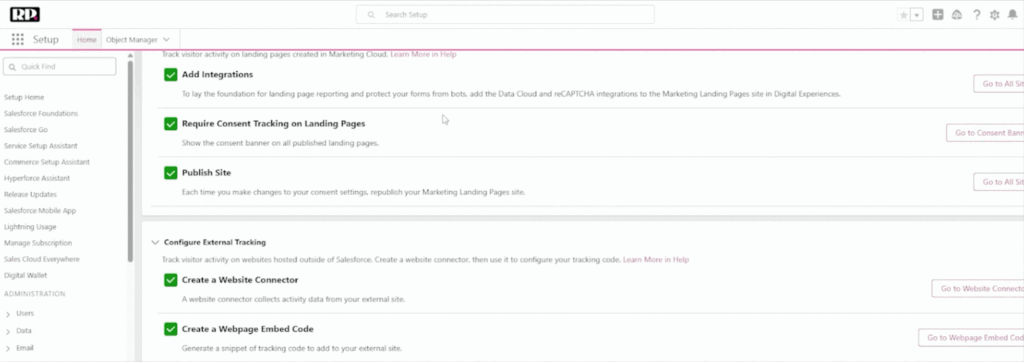
You’ll also be asked to select a campaign and define whether you want to require content or not on external site pages. In our case, we set this to “No” because we already have another tracking mechanism in place. We already have a banner to accept cookies, so there’s no need to add an extra one. But you can set this to “Yes” if you don’t have a cookie consent banner already.
Adding the Web Tracking Script
Once you’ve created the website connector, it generates a web tracking script. You need to copy this script and add it to the head of your website.

After adding the script to your site’s head, you’ll be able to see new data coming through in your Data Cloud. Specifically, you’ll see things like the data stream behavioral events for your website. Data will start flowing in from your website to Data Cloud, and from there into Marketing Cloud. You can then start seeing those behavioral activities and using them in your campaigns.
Setting Up Integrations in Experience Builder
We already covered forms and capture in earlier episodes, but another very important step is making sure your forms are actually allowed to show up on your external pages.In Experience Builder, navigate to Security and Privacy. Here, you want to allow framing of off-site pages on external domains. To do this, you have to add your trusted domains. In our case, we added our sister company’s domain and revenuepulse.com as trusted domains.
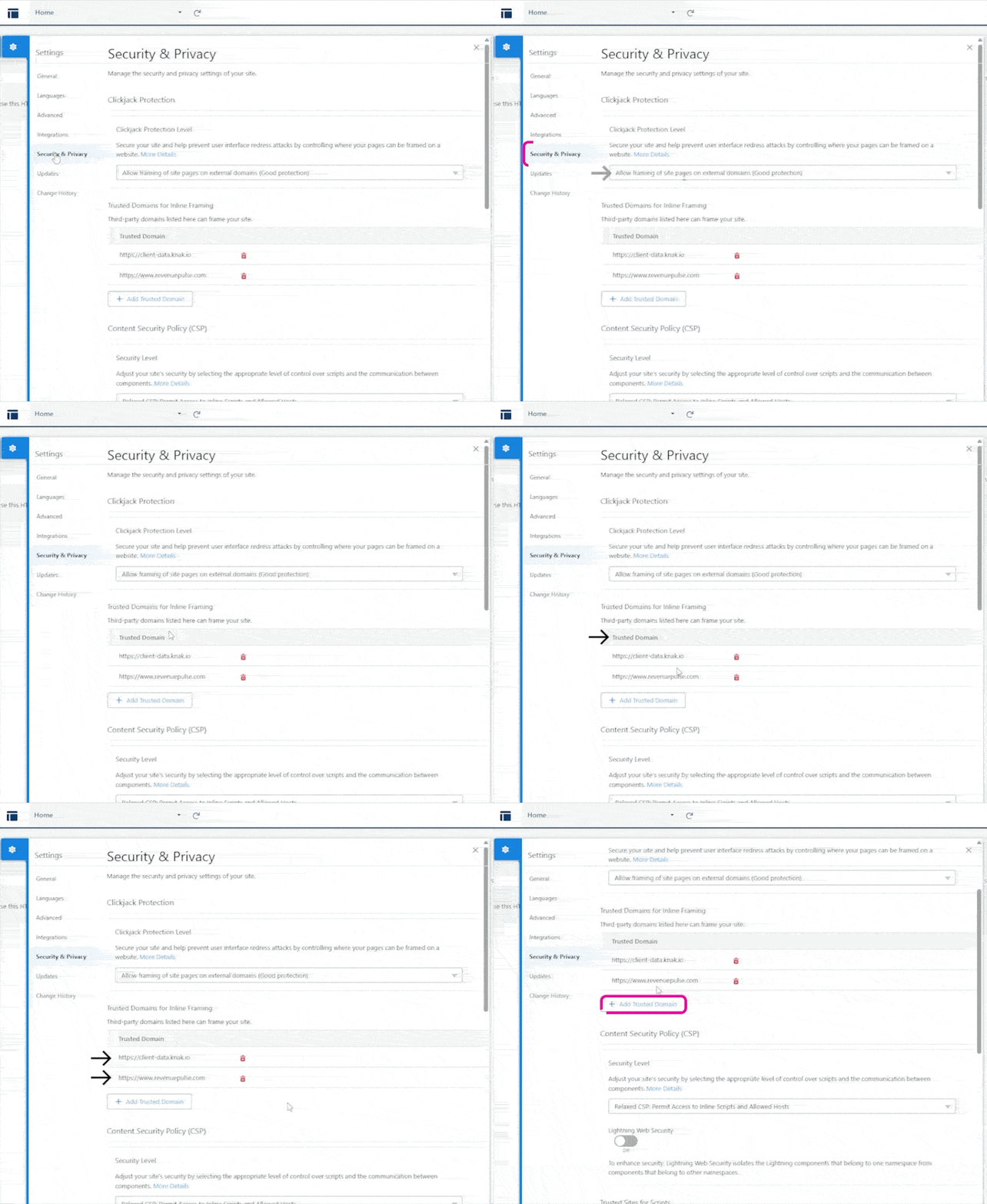
You also want to add your domains to your Cross-Origin Resource Sharing (CORS) policy. This ensures the forms are allowed to render on those websites. For example, one domain might be for your landing pages and the other for your main website. Adding both to CORS and the trusted domains list is what makes it possible for your forms to display properly on those pages.
Once both of these are configured, you can use your forms on your external pages without any issues.
Wrapping Up
That’s everything you need to connect your website, your forms, and your landing pages with Marketing Cloud. To recap: create the website connector, install the tracking script, and make sure your domains are trusted and CORS is configured. Stay tuned for the next few episodes, where we’ll continue building on these foundations.
Reach out to us here if you have any questions about your MCN migration!